Extensions
Install finished screens, new fields, and new blocks as packages.
An extension is a package that adds new capabilities to a Backlit app. Backlit is built to be extended from day one, and an extension can add these things:
- New field types, with their data conversion and their rendering.
- New blocks, widgets, and charts.
- Complete resources, with their views and actions.
The last item means that an extension can ship finished screens. You install a
package, you register it, and your admin panel has new pages. This page shows that
with @backlit/bullmq, an extension that adds an operations dashboard for
BullMQ queues.
How an extension works
A Backlit app has a server side and a client side, and an extension has a module for
each. The server module registers what runs on your server: field types, builders,
resources, views, and actions. The client module registers the components that
render the new node kinds. A package exports the server module from its main entry
and the client module from its /client entry.
Both modules have the same name and version. When the client starts, it reads the list of extensions from the manifest of the server and compares the list with its own extensions. When one side is missing, or the versions differ, the client reports which extension has the problem. You do not get a page that fails to render a node it does not know.
Install an extension
Install the package. One package contains both modules.
npm install @backlit/bullmqRegister the server module
Pass the extension to defineApp. This extension needs the connection to Redis and
the names of the queues to monitor.
import { defineApp } from '@backlit/sdk'
import { bullmq } from '@backlit/bullmq'

import { redis } from './redis.ts'

export const app = defineApp({
  extensions: [
    bullmq({ connection: redis, queues: ['emails', 'reports'] }),
  ],
  areas: {
    main: {
      label: 'Newsletter',
      resources: {
        subscribers: () => import('./resources/subscribers.ts'),
      },
      navigation: [
        { label: 'Subscribers', resource: 'subscribers', view: 'list', icon: 'users' },
      ],
    },
  },
})
Register the client module
Pass the client module to BacklitApp in the entry file of the frontend.
import { BacklitApp } from '@backlit/ui'
import bullmqClient from '@backlit/bullmq/client'

createRoot(rootElement).render(
  <BacklitApp
    baseUrl="/api"
    extensions={[bullmqClient]}
  >
    <RouterProvider router={router} />
  </BacklitApp>
)
The result
The app now has a “BullMQ operations” area in the area switcher of the sidebar, with five pages. The pages monitor the queues, list and filter the jobs, show the timeline and the logs of each job, and retry or cancel a job. You wrote no resource, no view, and no component for them.
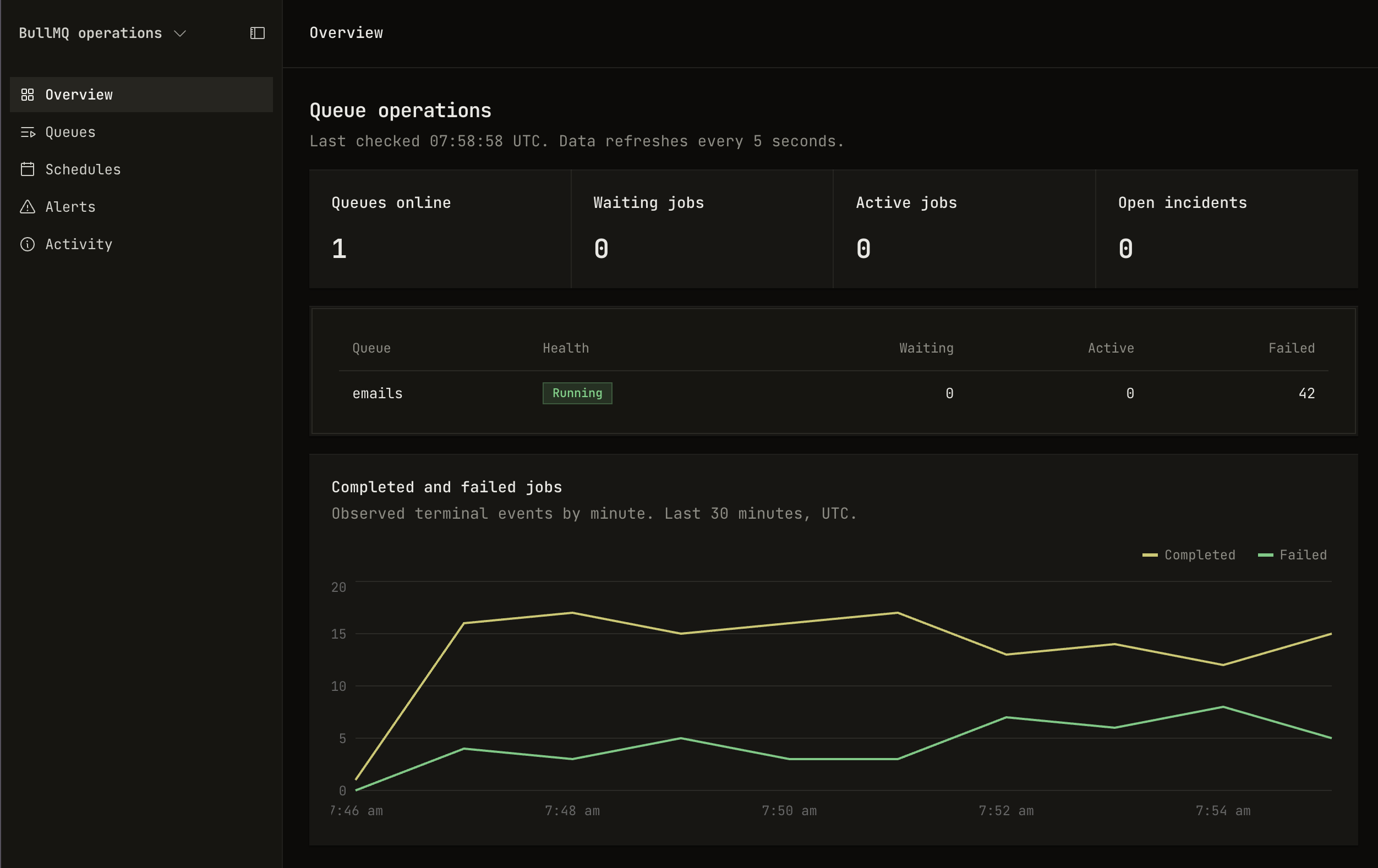
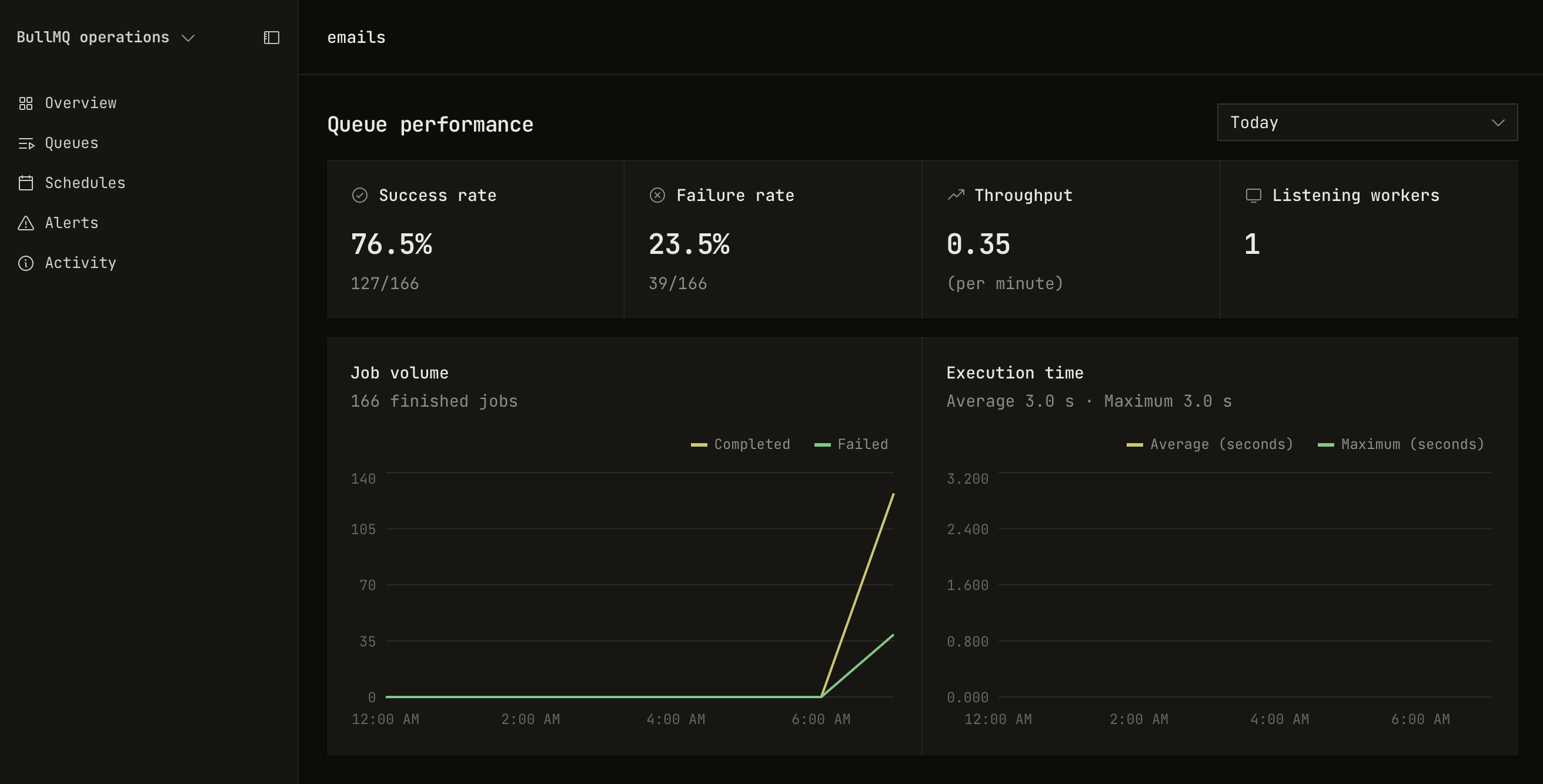
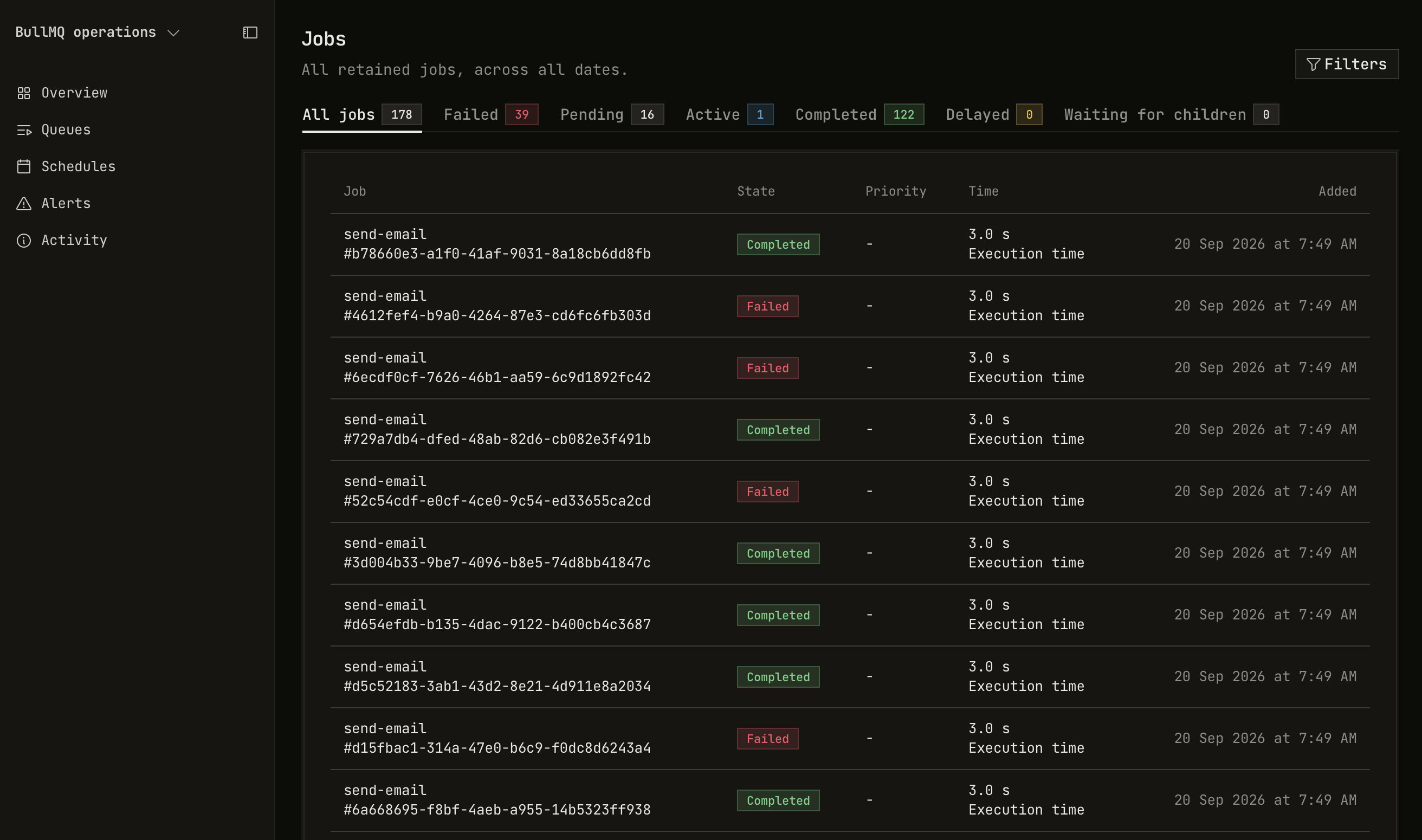
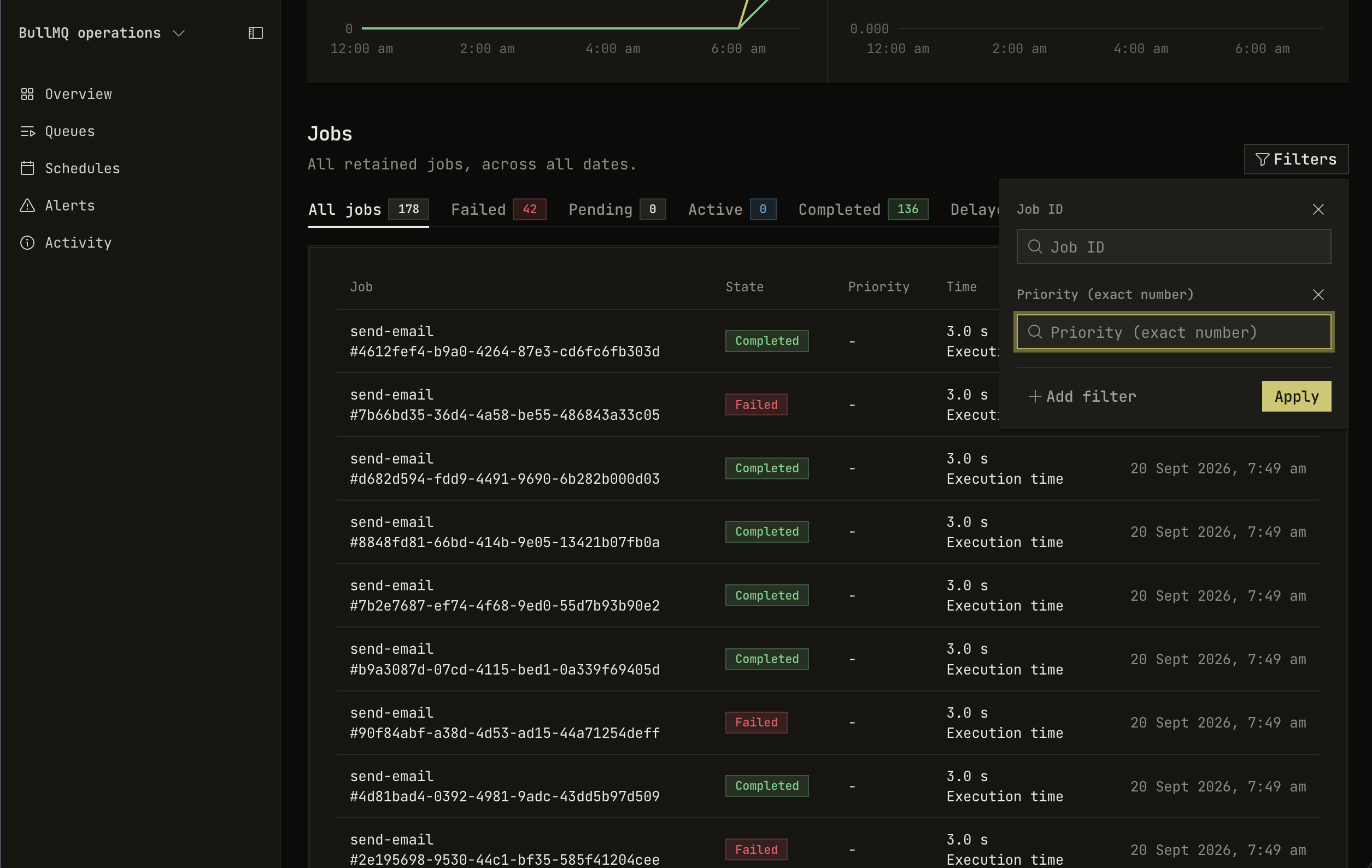
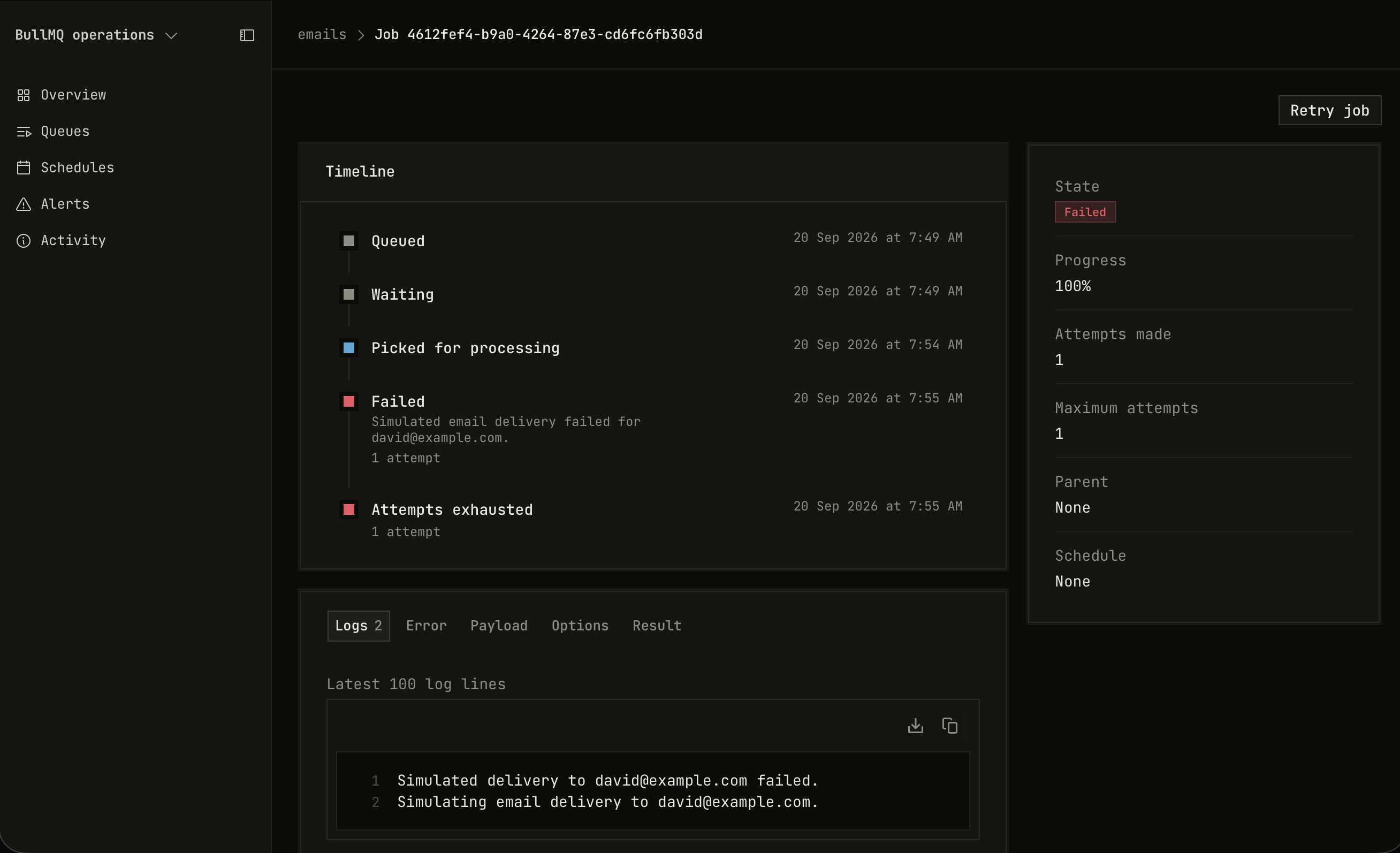
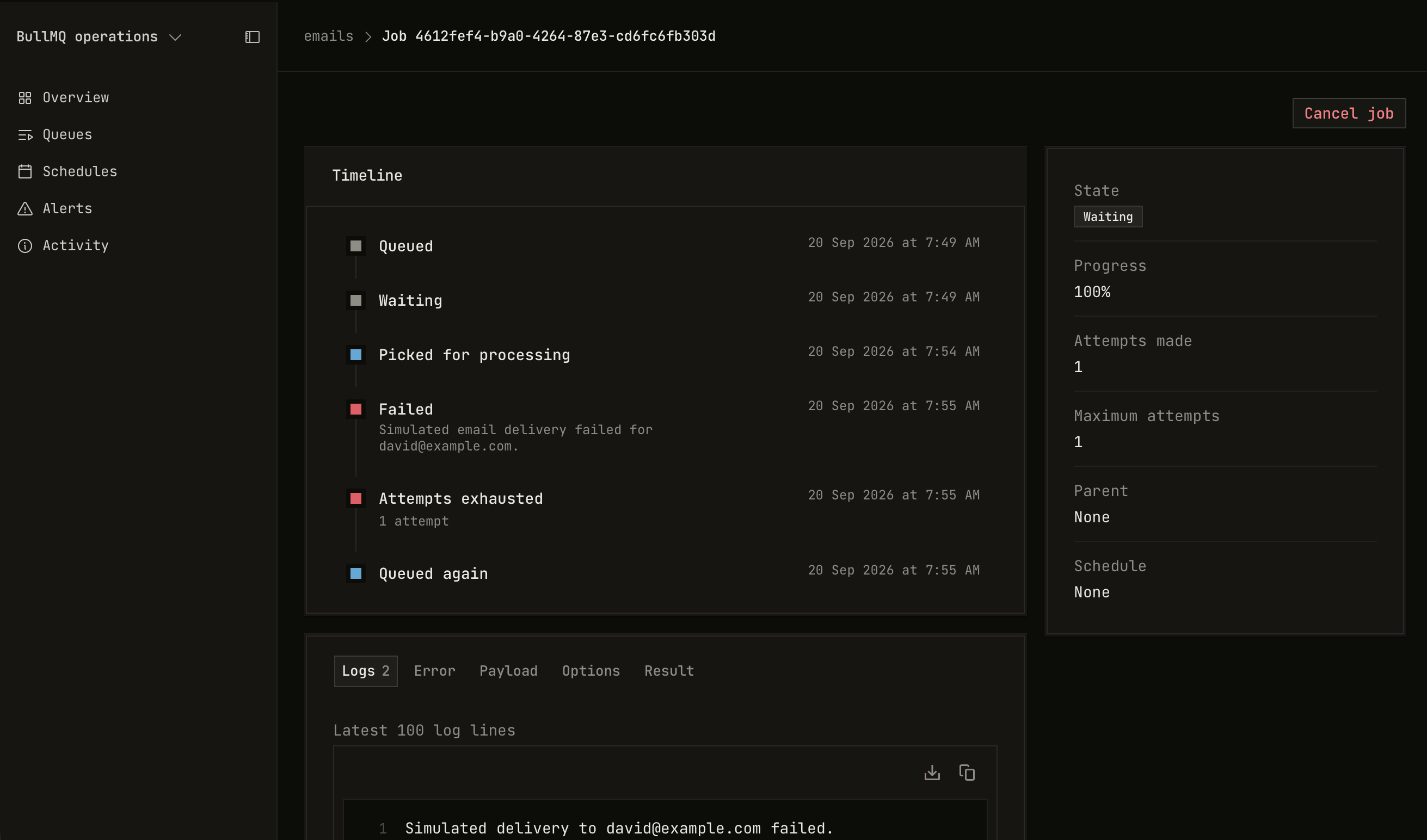
Image 1 of 6
These pages are Backlit views. The extension builds them from the same tables, timelines, tabs, widgets, and charts that your own views use. Thus they follow the theme of your app, they run behind your authentication, and their actions go through the same request pipeline as your actions.
What an extension is for
Use an extension when more than one app needs the same thing.
- Infrastructure dashboards. Queues, scheduled jobs, caches, feature flags, and audit logs are the same in each company. An extension turns each one into a package.
- Parts for your domain. A calendar block, a map block, or a money field with your rounding rules. You write the part one time, and each app of your company installs it.
- Your own platform. A team that owns authentication or billing can publish an extension, and each internal app gets the same user management pages.
When only one app needs one screen that no block can express, a custom page is less work than an extension. See Write a custom page.
Write an extension
An extension uses the public APIs of the SDK and the web client. The extensions guide covers the server module: factories, macros, remappers, and builder contracts. Field roles shows a complete extension with a server module and a client module.